Access the Driver Download Page
When the driver distribution is enabled, the user can download the driver package from the driver download page.
-
In the Web browser URL field, enter "http://(server-IP-address-or-hostname):(port- number)/drivers.html".
The Core Server uses port 8080 by default (port 51443 when SSL is enabled). Enter the correct port number if a different port was specified when the Core Server was installed.
When SSL is enabled, use "https" instead of "http".
-
The authentication screen is displayed when user authentication is enabled in the Driver Distribution (enhanced) function. Log in with an LDAP, Kerberos, or OpenID Connect authentication profile.
When logging in with an OpenID Connect authentication profile, the authentication provider login screen is displayed. Enter your login information, and then the browser redirects you back to the driver download page.
When logging in with a smart card, users must first register the smart card with Windows. See below for instructions.
-
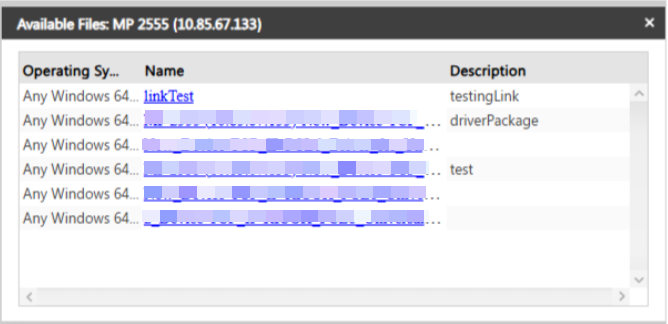
Click the device. The driver dialog box is displayed, as shown below.
-
Click a link in the [Name] column.
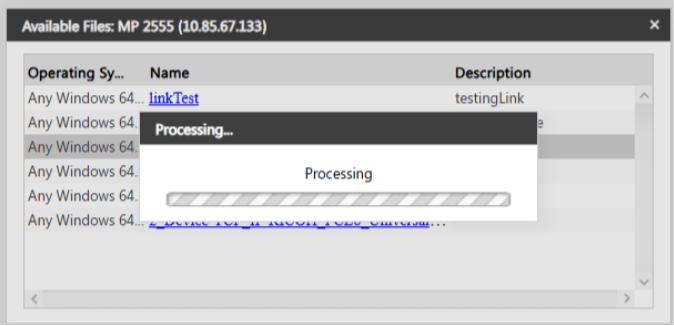
A processing dialog appears to show that the download is in progress. Once the download is complete, the dialog closes automatically.
-
When the Driver Distribution (enhanced) function is enabled, the search function and browsing by using a map, category, or group in the device list can be used, and only those drivers the current operating system supports are displayed in the download dialog box.
Smart Card Login and Authentication
It is possible to allow login via smart card to the SLNX Management Console, Driver Distribution portal, and the SLNX User Console. See Configure SLNX Card Login for instructions before registering cards with Windows.
If smart card authentication is configured, you must first register your card with Windows:
-
Insert the card into a connected card reader. The reader will copy the required authentication certificate to your personal store.
-
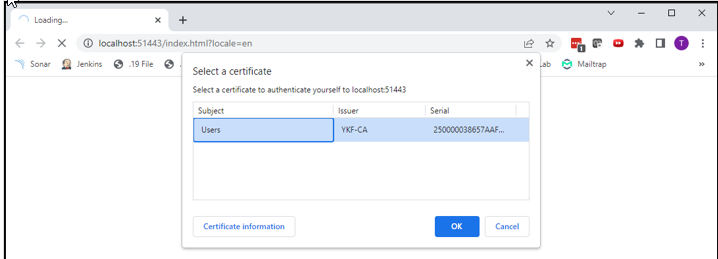
Navigate to the SLNX Driver Distribution repository and the browser will prompt you to select the certificate.
-
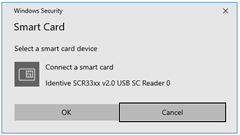
After the certificate is selected, you are prompted to insert the associated smart card.
-
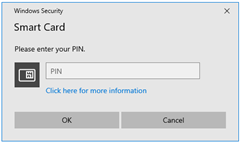
Re-insert the smart card in the card reader and you will be prompted to enter your smart card PIN.
-
At the SLNX Login screen, click Login with smart card to authenticate.
